d0837296baef4fc14d667832c1a5215944b54a8f46af2d5c5c TipsS And TricksS: apps and software
Showing posts with label apps and software. Show all posts
on Wednesday, 1 January 2014

2013 was a heady year: a time of hope; a time for sadness; a time for twerking; and a time for doge.
But it was also a time for gadgets. As we wait for 2013 to come to a close and hope for brighter things for the year to come, here’s a look at the gadgets we loved, the ones we hated, and the ones that we found aesthetically offensive.

The Good tech gadgets

The Fitbit Force

Fitness trackers are many and varied, but Fitbit consistently delivers top-notch hardware. The Fitbit Force is the latest. It takes the successful formula of the wrist-borne Fitbit Flex and adds a basic screen so you can get information right from your wrist, instead of having to open an app on your phone every time you want to check your progress (in more detail than via a few lighted dots).

The Pebble

Many tried to make a smartwatch people wanted to wear and use this year, and many failed. Pebble succeeded. Success for a smartwatch still doesn’t look like massive millions of units sold, but it looks better than when the Pebble team tried this a few years ago with the inPulse smartwatch for BlackBerry. “The what?” you say. Exactly.

iPad mini with Retina Display

The iPad mini with Retina display takes the winning form factor of the original iPad mini and slaps a super high-res screen in there. It’s essentially a no-compromise machine, in that it’s cheaper than the iPad Air, and has the same processor, computing power and battery life. Plus if you have big pockets, it’s pocketable.

Raspberry Pi

Kids need coding skills if they want to survive in our dystopian future. The ability to hack a circuit board could be the difference between eternal servitude and mastery over a private robot army by 2050 and we all know it. This educational tool is the perfect, cheap apocalypse survival kit. It’s technically from last year, but we contend it had more impact this year when production really spooled up.

Kindle Paperwhite

Amazon knows when it’s got a good thing going. Last year’s Kindle Paperwhite was a good thing, and this year’s update keeps all the good and adds some better stuff. Like faster page refresh, greater text/page contrast and more even lighting.

The Bad tech gadgets

Samsung Galaxy Gear

Pebble made a good smartwatch, and Samsung made a dumb one. They made weird ads to try to promote their dumb smartwatch, too, which helped nothing and creeped out the entire world. Plus it only works with a small pool of Galaxy devices, and it has terrible battery life and looks awful. Go home Samsung, you’re drunk.

Gamestick

“Android-based game console” is a phrase we wrote so many times this year. So. Many. Times. And it turns out, they mostly blow. Atop the pile of those that miss is the Gamestick, a crowdfunded disaster that no one loves.

Ouya

The Ouya is like the Gamestick, in that it was a disappointing “Android-based game console,” but to its credit, it isn’t the Gamestick. It’s still not great by any stretch of the imagination, but huge hype didn’t help, and it has decent niche appeal for anyone who really likes emulation and would rather have something permanent instead of plugging their phone into their TV repeatedly.

Leap Motion

Speaking of startup gadgets that really blew it in 2013, the Leap Motion Controller doesn’t live up to its massive hype at all. Sure, if you’re a billionaire inventor like Tony Stark or Elon Musk it’s great for designing space ships or giant death airships, but for regular people, trying to, say, browse the web, you’re going to try this once, hate it and stick it in a drawer.


on Sunday, 29 December 2013

Many android users don’t know much about the hidden features of android phones. Today we are sharing an article with secret android tricks and hidden features of android phones. Different versions of android versions support different set of android tricks, so try them all

1) Force reboot


Many times android users face a problem of freezing in mobile phone, in case your android phone is frozen, you can reboot it.

Just press Power Button+ Home Key + Volume up button simultaneously.

2) Quick Google Access


Android phones is built primarily for the Internet, many of Android users don’t know that android phones provide a way by which we can access Google search in just a single click.

Press menu key and hold it for couple of seconds, it will launch the Google search.


3) Reboot Android in safe mode


As many computers, we can also reboot Android phones in safe mode. The latest Android- Jelly Bean version provides an option to reboot in safe mode, if something goes wrong.
To reboot your android in safe mode, follow the below given instructions.

*Long press the power button
*Long press on the power off option.

Android phone will show a confirmation message about rebooting it in safe mode, if we reboot android phone in safe mode then all the 3rd party application will be disabled. These applications can again be enabled when we reboot our phone normally. This is a great Android utility in case when, one of your 3rd party application is causing trouble for you and you want to hunt it.


4) Unlock android phones by face detection


In the jelly bean version, Android provides a way by which android phone can be unlock using face detection, to make this feature more secure, Jelly Bean version added another layer of protection in which Android phone can be unlocked only when the face is matched as well as we have to blink eyes in order to unlock phone. Blinking eyes tells the android security system that person is live and it’s not an illegal attempt of unlocking using a still image.
To activate this:

Go to Settings > Security > Screen lock > Face unlock.

5) Get detailed information about phone status


We can get the detailed statistics like phone information, battery information, usage statistics and WiFi information by just dialing *#*#4636#*#*

This is a handy USSD to get the details about battery usage, DNS check, Ping, Application time usage time and so on.


6) Move android apps to SD card


Its good idea to install android apps in SD card, but what if you installed apps on your phone memory. Don’t worry! Android phones provide a way by which we can move our apps to SD card. To move apps to SD card, follow these steps:

Go to settings > Application settings > Manage application > Select the application, You will see the option “Move to SD card”.

7) Hard Reset and Factory reset your android phone


Android phone can be formatted in two ways

a) Factory reset: In factory reset, your phone is being formatted to factory level. Means all the settings will go by default and all the internal data will be deleted. To factory reset a phone dial *#*#7780#*#*.


b) Hard reset:
To hard reset a phone dial *2767*3855#, this will delete all the data (including internal and External SD data) as well as settings of android phone. Don’t try this code for testing purpose, until you are not sure. It will not ask for any confirmation.


Context menu in android:

Long press on the screen, will show you additional options for customizing android phones. This context menu is somewhat similar to the right click menu of most operating systems.

9) Taking screen shots on android phone


Android phones offer a great feature by which we can take the screen shot without using any 3rd party application. However the screen shot android tricks vary from one android version to another version.

Press the Home button + power button.
For Galaxy Nexus: Power button + volume down button.
For Galaxy Note 2 and S3: Swipe your palm on the screen to take screen shot.

10) Android Version Animation


Go to settings > about phone > Tab repeatedly on ‘Android version’.
After sometime, the Android version will be animated

Hope you find it useful and you will try it on your Android device!


See also :- 
How to Unlock Android Pattern Lock And Password Lock

on Thursday, 19 December 2013
This year, games pushed the envelope in narrative, whether through a strongly written story or subtle character-building clues left in dialog. But where strong narrative stopped, great gameplay stepped in to make what we played this year some of the most fun and challenging games in recent memory.

1. The Last of Us

on Sunday, 15 December 2013
http://www.alexa.com/pro/subscription/configure?sid=1f6e9323-dc27-4edd-9bba-d8da10048b55#
Posted  by  
Why does Google need robots Because it already rules your pocket. The mobile market, except for the slow rise of wearables, is saturated. There are millions of handsets around the world, each one connected to the Internet and most are running either Android or iOS. Except for incremental updates to the form, there will be few innovations coming out of the mobile space in the next decade.
Then there’s Glass. These devices bring the web to the real world by making us the carriers. Google is already in front of us on our small screens but Glass makes us a captive audience. By depending on Google’s data for our daily interactions, mapping, and restaurant recommendations – not to mention the digitization of our every move – we become some of the best Google consumers in history. But that’s still not enough.
Google is limited by, for lack of a better word, meat. We are poor explorers and poor data gatherers. We tend to follow the same paths every day and, like ants, we rarely stray far from the nest. Google is a data company and needs far more data than humans alone can gather. Robots, then will be the driver for a number of impressive feats in the next few decades including space exploration, improved mapping techniques, and massive changes in the manufacturing workspace.
Robots like Baxter will replace millions of expensive humans – a move that I suspect will instigate a problematic rise of unemployment in the manufacturing sector – and companies like manufacturing giant Foxconn are investing in robotics at a clip. Drones, whether human-control or autonomous, are a true extension of our senses, placing us and keeping us apprised of situations far from home base. Home helpers will soon lift us out of bed when we’re sick, help us clean, and assist us near the end of our lives. Smaller hardware projects will help us lose weight and patrol our streets. The tech company not invested in robotics today will find itself far behind the curve in the coming decade.
That’s why Google needs robots. They will place the company at the forefront of man-machine interaction in the same way that Android put them in front of millions of eyeballs. Many pundits saw no reason for Google to start a mobile arm back when Android was still young. They were wrong. The same will be the case for these seemingly wonky experiments in robotics.
Did Google buy Boston Dynamics and seven other robotics companies so it could run a thousand quadrupedal Big Dogs through our cities? No, but I could see them using BD’s PETMAN, a bipedal robot that can walk and run over rough terrain – to assist in mapping difficult-to-reach areas. It could also become a sort of Google Now for the real world, appearing at our elbows in the form of an assistant that follows us throughout the day, keeping us on track, helping with tasks, and becoming our avatars when we can’t be in two places at once. The more Google can mediate our day-to-day experience the more valuable it becomes.
Need more proof? Follow the money. Robotics is big business and analysts estimate that Boston Dynamics could be a $5 billion company in the next few years. With the right contracts and the right product mix, almost any of member Google’s current robot horde can hit nearly any market, from consumer robotics on a large scale to massive installations in manufacturing – not to mention those lucrative DARPA contracts.
on Friday, 6 December 2013
Brightest Flashlight app on Android was deceptive in sending user data to advertisers, says US FTC. Photograph: /public domain 


An innocuous-looking torch app for Android that has been downloaded more than 50m times silently shared users' locations and device IDs with advertisers, the company has admitted.
In a settlement with the US Federal Trade Commission (FTC), the maker of Brightest Flashlight Free admitted that the app's privacy policy "deceptively failed to disclose" that it was passing on location and device ID data to networks of advertisers.
The privacy policy said that "any" information collected by the app would be used by the company. But it didn't say that it would also send it to third parties.
Since its release in February 2011, the app has been downloaded between 50m and 100m times, according to data on the Google Play app store.
"When consumers are given a real, informed choice, they can decide for themselves whether the benefit of a service is worth the information they must share to use it,' said Jessica Rich, director of the FTC's consumer protection bureau. "But this flashlight left them in the dark about how their information was going to be used."
The FTC also said that the app gave users a false choice: "At the bottom of the license agreement, consumers could click to 'Accept' or 'Refuse' the terms of the agreement. Even before a consumer had a chance to accept those terms, though, the application was already collecting and sending information to third parties – including location and the unique device identifier."
That meant that advertisers could in effect have tracked users through their device ID and location to see what adverts they were clicking on - and even identified people through related information.
Under the settlement, the app will have to tell users how, where and when their data is about to be shared, and get their express permission to do so.
The case is the first where the FTC has zeroed in on unwanted sharing of geolocation data as part of its requirement to protect US consumer privacy.
Android apps tell users what information they will collect from users before they are installed - but do not give any explanation of what or how the information will be used, or why it is necessary to collect it. There is also no standard way to veto the collection of data or access to a machine function by an app.
The Play Store app, which has generally received good reviews - an average of 4.8 out of 5 - turns on all the lights on the device to create a torch. It also says that it offers "unobtrusive ads".
The developer, GoldenShores Technologies, also offers another app for choosing colours, which is also ad-supported. It has had far fewer downloads, totalling around 50,000. The FTC didn't say whether it is investigating that app.
Erik Geidl, who runs GoldenShores Technologies, has been ordered to delete any personal information that the app has collected. He is also required to tell the FTC if he changes his employment over the next ten years.
on Thursday, 5 December 2013
http://www.alexa.com/pro/subscription/configure?sid=1f6e9323-dc27-4edd-9bba-d8da10048b55#


Many android users don’t know much about the hidden features of android phones. Today we are sharing an article with secret android tricks and hidden features of android phones. Different versions of android versions support different set of android tricks, so try them all

1) Force reboot


Many times android users face a problem of freezing in mobile phone, in case your android phone is frozen, you can reboot it:

Just press Power Button+ Home Key + Volume up button simultaneously.


see also - How to unlock android pattern lock


2) Quick Google Access


Android phones is built primarily for the Internet, many of Android users don’t know that android phones provide a way by which we can access Google search in just a single click:

Press menu key and hold it for couple of seconds, it will launch the Google search.

3) Reboot Android in safe mode


As many computers, we can also reboot Android phones in safe mode. The latest Android- Jelly Bean version provides an option to reboot in safe mode, if something goes wrong.
To reboot your android in safe mode, follow the below given instructions.

*Long press the power button
*Long press on the power off option.


see also - Wi Fi password hack using Android Phones

Android phone will show a confirmation message about rebooting it in safe mode, if we reboot android phone in safe mode then all the 3rd party application will be disabled. These applications can again be enabled when we reboot our phone normally. This is a great Android utility in case when, one of your 3rd party application is causing trouble for you and you want to hunt it.


4) Voice typing

Not all Androids have it, but if yours does, it is a pretty sweet feature. It’s available on latest versions. While typing a mail or a message, look at the space bar. If you see a mic icon there, you can tap it and Android will convert your speech to text. It won’t be absolutely correct so you’ll have to make changes.

see also - Top Features of Android JellyBean

5) Call a contact with just a single tap


I’m sure you are aware of the fact that you can add app icons to your home screen. Just like those app icons, you can add contact icons to the screen as well. To add a contact icon, long press the empty space on home screen. You’ll see a popup menu. Select Shortcuts>Contact. Now go through the contact list and tap on the person you want to add there.


see also - Run Android Apps on Pc


6) Unlock android phones by face detection

In the jelly bean version, Android provides a way by which android phone can be unlock using face detection, to make this feature more secure, Jelly Bean version added another layer of protection in which Android phone can be unlocked only when the face is matched as well as we have to blink eyes in order to unlock phone. The Above tricks n tips are provided by IHA.Blinking eyes tells the android security system that person is live and it’s not an illegal attempt of unlocking using a still image.
To activate this:

Go to Settings > Security > Screen lock > Face unlock.

see also - 30+ secret codes of Android phones


7) Get detailed information about phone status

We can get the detailed statistics like phone information, battery information, usage statistics and WiFi information by just dialing *#*#4636#*#*

This is a handy USSD to get the details about battery usage, DNS check, Ping, Application time usage time and so on.


8) Amazon App Store

This app store is trusted, AND it gives one premium app for free each day. Check this store to download paid apps for free.
Want more cool Android tips and tricks? Keep watching this space for more. And don’t forget to leave your comments in case you have any questions/problems with your Android.
see also - Top 10 Most Popular Android Apps


9) Download Non-Playstore apps


Google Playstore has tons of apps, but if you still want more apps, there are other stores out there as well. Though Google Playstore is safer (I don’t know how true that is because many apps of Playstore have been found to be infected), if you want, you can open your options to other app stores as well. To do this, go to Application settings, and check the option that says “Unknown Sources”.  But make sure you download apps from only trusted sources.

10) Special characters


Want to quickly access special characters? No need to switch keyboards to type comma and slashes- just long press the period key and you’ll see a popup with all the recent characters.


on Saturday, 30 November 2013


Torrent use is very popular these days. Whether you want to download a large file, or even a small one, you can use a torrent to download your desired file. In order to download the files, you need seeders and leaches. The more seeders, the better because you get faster download speed. The lower the seeders and leaches count, the slower the speed.

IDM is a very popular download client that helps you download many files at once, but also accelerates the download process. If you especially want to download very large files, IDM can come in very handy because it separates the file(s) into parts and downloads the smaller parts in accelerates rate. Once everything is downloaded, the smaller files are put back together into the original file you intended to download. Fairly simple, right? Now let to know..
How you can Download Torrent Files With IDM 

Follow below steps to Download Torrent Files With IDM

Step 1: 

Select any Torrent download client such as utorrent or Bittorrent You can use these clients to download the Torrent files onto your computer.

Step 2: 

Go to a Torrent uploading site such as ExtraTorrent or zBigz. In this step, you will be uploading the Torrent you downloaded earlier.

Step 3: 

Upload the Torrent using the sites stated in the previous step, or if you have a site of your choosing, go from there. Make sure to use the “Free” uploading option. Assuming that you don’t want to pay for an account, just go with the free option. Do note that if you go with the free option, there are limitations set by the website. If you go with a premium account, some extra perks are provided.
Depending on how big the Torrent is, that’s how long it may take to upload. It also depends on how fast your Internet connection is. The faster your connection is, the faster the upload speed will be.

Step 4: 

Once you have uploaded the Torrent, there should be an option for you to “ZIP” the Torrent. Normally, there will be extra options to download the contents of the Torrent file individually, but for now, lets go with the “.zip” option.

Step 5: 

Once everything has been zipped in the “.zip” format, hit download. Internet Download Manager should pop up and automatically take over the download process instead of your browser.

This may seem like a bit tedious process, but it’s well worth knowing that you can download the Torrent through a ZIP file format without having to worry about increasing or decreasing connection speed. More people these days are using this process in order to speed up downloading and uploading of Torrents.

read more:-    How To Increase Download Speed of IDM using IDM Optimizer

on Friday, 29 November 2013
In this article I want to outline 10 interesting web apps for testing your code online. All of these apps require an Internet connection, and some of the more advanced editors offer pro plans to upgrade your account features. But most of these tools will surely come in handy when you’re scrambling to debug a block of JavaScript or PHP.
Modern trends and webapps have dramatically changed the way web developers can build. Obviously you need some type of IDE to code new files and save them for deployment. But what about just testing your code snippets? There are more tools available now than ever before!


1. CodePad

codepad is an online compiler/interpreter, and a simple collaboration tool. Paste your code below, and codepad will run it and give you a short URL you can use to share it in chat or email.

2. Write Code Online
The main website for WriteCodeOnline.com actually redirects to their JavaScript editor. You can choose among JS, PHP, and basic URL encoding. Their application is very safe to use and feels lighter than other alternatives.
What’s interesting is that you’ll see the output results directly underneath the text field. So when you hit “run code” it will parse through everything and display the result for you to see. It can be tough debugging some larger PHP scripts because you need to include other files.


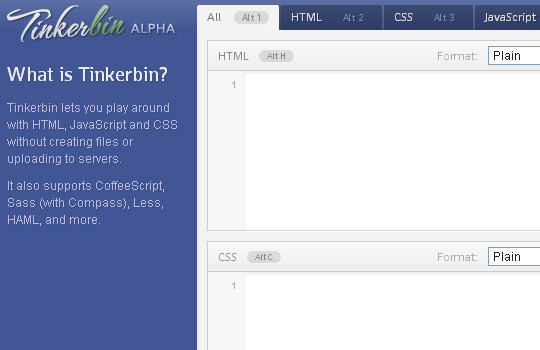
3.TinkerBin


Tinkerbin lets you play with HTML,Javascript and CSS without creating files or uplading to servers. It also supports Coffeescript, Sass(with compass), Less, HAML and more. Tinkerbin may actually be my favorite online code editing resource. It supports web developers coding in HTML5/CSS3/JS and renders the output directly on-screen. The application is still in Alpha development, but most of the tools work perfectly and can quickly catch bugs.

4. JS Bin


In a similar fashion as above, jsbin is a simple JavaScript debugging console. Their pitch involves a collaborative effort where you can share a private link with other developers and write together in real time.
As you’re coding different elements the drafts will autosave. You have the ability to download your final product or keep the source code saved online. Their system is much more advanced for exporting and keeping your code as a bare template.

5. JS Fiddle


jsfiddle is one the most popular playground for web developers. It’s an online editor for snippets build from HTML, CSS and JavaScript.You can also share your code snippets with others and embed them in a blog.

Anybody who has browsed through Stack Overflow must know about jsFiddle. Their interface is a whole lot difference compared to JS Bin, along with support for more complex functions. Right away you can signup for a free account and start saving your code samples online. jsFiddle offers a short URL which you can share around the Web via Twitter, Facebook, even Stack. But notice you do not need an account to start coding. It’s just a handy feature to keep everything organized.
6. CSS Desk


Moving from the world of scripting into stylesheet language, we have CSSDesk. You’ve got a similar setup like all the rest, with your source code on the left and final webpage render on the right. This webapp is great for building small webpage templates and testing the longer CSS3 properties with gradients and box shadows.

7. JSdo.it

 
Some of the apps appear to have Japanese writing which makes me believe it was originally created somewhere in Asia. But what I love about their interface is how you can actually upload files you’ve already created and store them into a project. It’s such an easy process to store full webpage mockups online where you can access and edit them from any computer.

8. Google Code PlayGround


I would recommend saving this tool only as a resource. It’s not perfect for debugging everything you write. But Google is a huge company with a lot of open source API data. If you ever need to pull content from YouTube or custom Google Searches, this is the sandbox you want to use.
Google Code Playground is another great online tool test and run your code without opening an external editor.All of the API’s are loaded for you in the Pick an API box

9.IDEOne


What’s so great about their app is how you can quickly debug many different programming languages from the same page. You can also store this source code via a unique URL to share around the Web. However I do feel that their layout is very cluttered with ads and other content, it makes using their website difficult. It would be really cool to see the option of including alternate code libraries, such as Cocoa Touch for iPhone app development.

10. Viper 7 CodePad


This webapp also named 
Codepad is hosted on a website viper-7.com, which also redirects to the same online editor. Their debugging tools are setup for PHP output where you can change between PHP5 and PHP4.
If you create an account you can use their service as a personal storage system. Much like other online editors, you can name each PHP project and keep them hosted online for free. It’s such a powerful code editor because you don’t need any software on your computer at the time. As you parse each script the editor will offer additional meta details, such as browser request & response headers.